These instructions will guide end users on the initial clinical workflows used in an installed and configured CARLOS. Extended details to make the most of CARLOS are beyond the scope of this introduction. Best to consult a CARLOS service provider or an experienced OSCAR clinic which will be familiar with the workflows.
The OFFICIAL INSTRUCTIONS for CARLOS are on Github at CARLOS EMR
There are several main clinical workflows in CARLOS. Basic examples are as below
Lab Inbox review
Messaging
booking patients
Writing a Rx
Chart entry
Billing
Reviewing your Labs Inbox
The first thing I do every day is access the inbox by starting at a main page that shows the navigation toolbar
As the inbox has a superscript you know you have work to review! Click on the Inbox tab and open the inbox
There are many types of inbox items. They can be faxes, electronic labs (HL7), or in Ontario, Hospital reports (HRM). Lets click on an item and review it.
Here we have a Faxed report. Its essentially normal so you click the Macro down caret and click the macro “normal” that was set up earlier for you. Alternately you can click sequentially Comment, type in your comment, and Acknowledge. That clears it from your inbox. As long as the demographic has been matched its already filed in the patients chart.
Here we have an unmatched electronic lab (HL7). A new window pops up to give the opportunity to match a demographic or use the information from the lab to add a new patient.
Messaging
Looking at the navigation toolbar looks like you have 2 messages in Msg. The superscript 1/2 indicates that one of them linked to a patient’s chart.
Lets review your Message inbox by opening the Msg tab
You have checked one of the messages which you can archive, mark as read, or unmark as read. Lets just click the one with subject demo linked
Huh. Well lets reply and find out what was meant by that.
Booking patients
CARLOS has two main ways to book a patient. One is by simply clicking a schedule slot and filling the helper window.
However if you don’t have any open appointments today you can use the quick search and having it search for the 3rd next open appointment for the MRP. Click the Appt badge and CARLOS will switch to week view and the make appointment helper will open prefilled with the demographic at an open schedule slot. Click on the demographic name to confirm and make appointment and done.
Writing a Rx
If you click on the green Rx badge from the quick search (one of many ways to get to the Rx interface) you will open the following
Simply start typing the name of the drug and select the one you want from the list to stage it.
Type in the instructions for the medication and Save and Print.
Rx print preview
Chart entry
In an earlier step we scheduled Nobody
Click on the “E” and the eChart will open. Its busy but all you need to get started is to type or paste your AI’s note in the white box below the template search. When you are done click the $ button to sign save and bill.
Billing
Like most important things in CARLOS there are several routes to the billing workflow. The common one is the click Sign Save and Bill in the eChart. A simple one is to click on the ‘B’ on the schedule. Any way you do it you get to the billing screen (Ontario shown)
You start with the billing code. Either pick them from the billing form below or use the search function to autocomplete either from the code or its description. The diagnosis search works the same way
Fill out the other details (your location can be “not applicable” for clinic billing) and hit Next to review the bill
Save and you are done!

 As the inbox has a superscript you know you have work to review! Click on the Inbox tab and open the inbox
 There are many types of inbox items. They can be faxes, electronic labs (HL7), or in Ontario, Hospital reports (HRM). Lets click on an item and review it.
 Here we have a Faxed report. Its essentially normal so you click the Macro down caret and click the macro “normal” that was set up earlier for you. Alternately you can click sequentially Comment, type in your comment, and Acknowledge. That clears it from your inbox. As long as the demographic has been matched its already filed in the patients chart.
Here we have an unmatched electronic lab (HL7). A new window pops up to give the opportunity to match a demographic or use the information from the lab to add a new patient.
Here we have a Faxed report. Its essentially normal so you click the Macro down caret and click the macro “normal” that was set up earlier for you. Alternately you can click sequentially Comment, type in your comment, and Acknowledge. That clears it from your inbox. As long as the demographic has been matched its already filed in the patients chart.
Here we have an unmatched electronic lab (HL7). A new window pops up to give the opportunity to match a demographic or use the information from the lab to add a new patient.

 You have checked one of the messages which you can archive, mark as read, or unmark as read. Lets just click the one with subject demo linked
 Huh. Well lets reply and find out what was meant by that.

 However if you don’t have any open appointments today you can use the quick search and having it search for the 3rd next open appointment for the MRP. Click the Appt badge and CARLOS will switch to week view and the make appointment helper will open prefilled with the demographic at an open schedule slot. Click on the demographic name to confirm and make appointment and done.

 Simply start typing the name of the drug and select the one you want from the list to stage it.
 Type in the instructions for the medication and Save and Print.

 Click on the “E” and the eChart will open. Its busy but all you need to get started is to type or paste your AI’s note in the white box below the template search. When you are done click the $ button to sign save and bill.

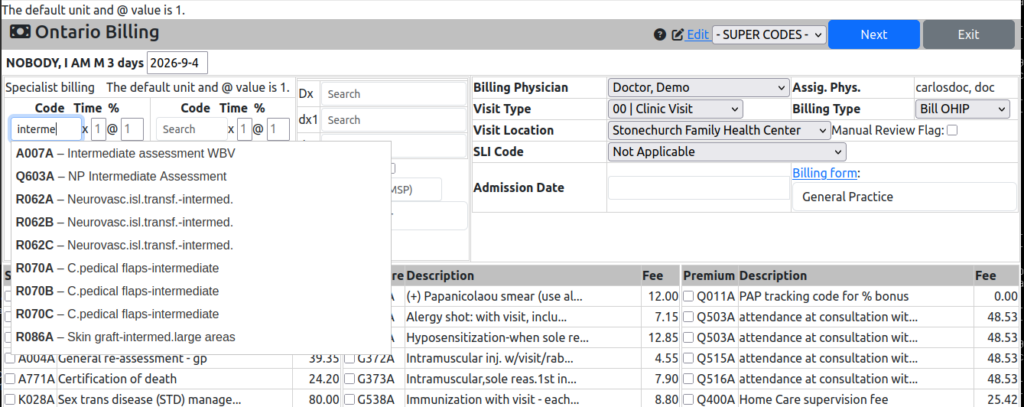 You start with the billing code. Either pick them from the billing form below or use the search function to autocomplete either from the code or its description. The diagnosis search works the same way
 Fill out the other details (your location can be “not applicable” for clinic billing) and hit Next to review the bill
 Save and you are done!