
CARLOS by DEB
Preface
These unofficial simplified install instructions are adequate for a local install of CARLOS on Ubuntu 26.04 . Right now these are alpha code instructions. Do not use these instructions for production until this notice is removed. A magnitude more detail is in the official instructions maintained on Github at CARLOS EMR in the READMEs in the debian folder of source.
ATTENTION:
- I recommend the Deb method which is designed for small clinics who value the simplicity of both the installation and maintenance.
- The Podman container adds default monitoring and may be more suited for larger deployments and is described elsewhere.
- Manual installation of CARLOS is significantly less secure than the above two options.
- The CARLOS Deb and Podman will install an web application firewall (WAF) to protect it. This plus a server firewall (ufw see bottom) and an offsite backup are the minimum level of security that the developers feel required for the server. While CARLOS is designed with laser focused attention to privacy and cyber security, it’s server sits in the context of your own network and specific regulatory environment. THIS DEB IS NOT A SUBSTITUTE FOR YOUR OWN REVIEW.
Document Version History
- v1.5 – Initial instructions for LTS Ubuntu 26.04 – Aug 23, 2026
- v1.6 – Minor clarifications – Aug 27, 2026
- v1.7 – Alpha 9 adds demo data option – Aug 30, 2026
- v1.8 – Alpha 11 and updated troubleshooting – Sept 6, 2026
- v1.9 – Alpha 18 adds migration – Sept 30, 2026
Documentation Copyright ©2026 by Peter Hutten-Czapski MD under the Creative Commons Attribution-Share Alike 3.0 Unported License
Prerequisites
These instructions work IF:
- You have a basic level of Linux knowledge and you can open a Linux terminal.
- You have the time. Allow 30 minutes to install Ubuntu, 40 minutes to install CARLOS and 5 to install drugref.
- You are using suitable hardware. Use consumer grade desktops with 8GB+ RAM for 1-3 MD’s increasing to server grade machines with 32GB+ for 7+ MD’s.
- You have installed a 26.04 LTS version of Ubuntu. We strongly recommend *full disk encryption*, if you are able to manually provide the password after a power outage or reboot.
- We do not assume you are using a virtual machine (VM) but we recommend it for enterprise level equipment and this is how these instructions have been tested.
First Steps – Update Your OS!
Update to ensure that the appropriate packages are available and your operating system is up to date.
sudo apt update

sudo apt upgrade
Install CARLOS and Drugref (and any other supporting debs)
- alpha builds will have show stopping bugs.
- beta builds will have some production testing.
- release builds are designed for production use
View available packages on Github at https://github.com/carlos-emr/carlos/releases. Download ALL the deb packages from the latest release (yours almost certainly will be named differently than exampled here) and check the integrity of each .deb against the published SHA. Here we start with the CARLOS deb.
wget https://github.com/carlos-emr/carlos/releases/download/2026.08.0-alpha11/carlos-emr_2026.09.0.alpha11_all.debsha256sum carlos-emr_2026.08.0.alpha11_all.deb
44191c1f5049ef404ea77eb439c8ac99248f486a6e74df893a44efb690b69f6f
sudo apt install ./carlos-emr_<version>_amd64.deb ./carlos-emr-drugref_<version>_all.deb
eg for alpha 18 that would be sudo apt install ./carlos-emr_2026.08.0.alpha18_amd64.deb ./carlos-emr-drugref_2026.08.0.alpha18_all.deb ./carlos-ctl_1.1.1_all.deb
New installs get the following configuration screens. You can accept the defaults if unsure.
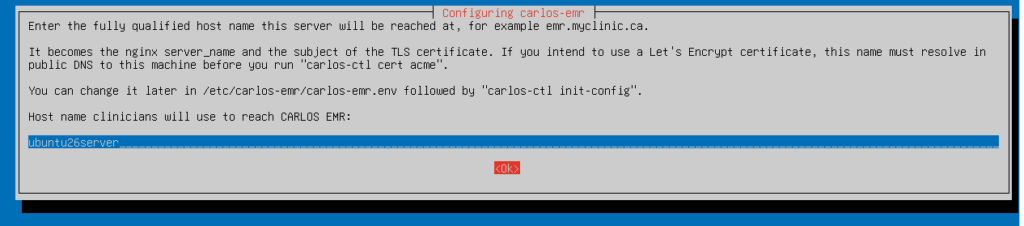
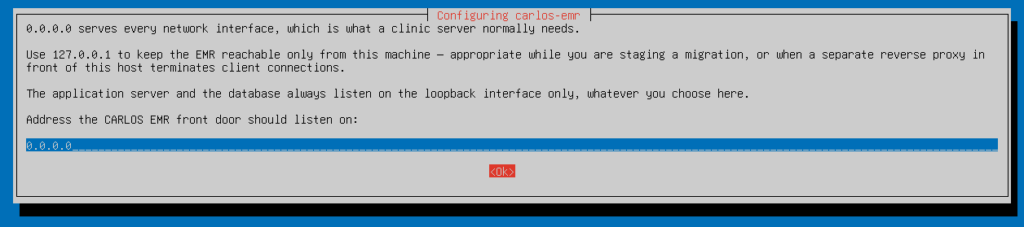
Then the network address for CARLOS EMR front door
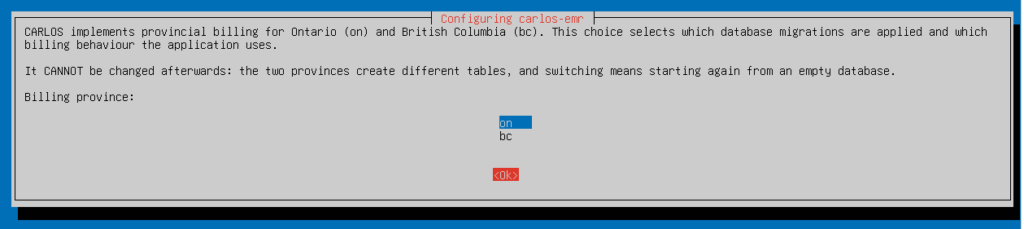
Then specify the Canadian billing province ON or BC. Choose ON or Other for other jurisdictions.
Then set the memory based on your actual. As before the Deb will probe your machine and set an appropriate initial value.

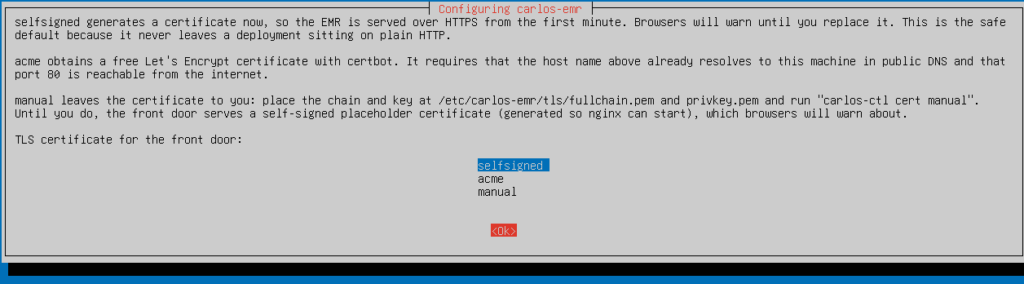
Now choose your certificate type. For testing or even production self signed will do (remember you can change it up later)
Finally let the Deb generate initial credentials for you. They will be waiting for you
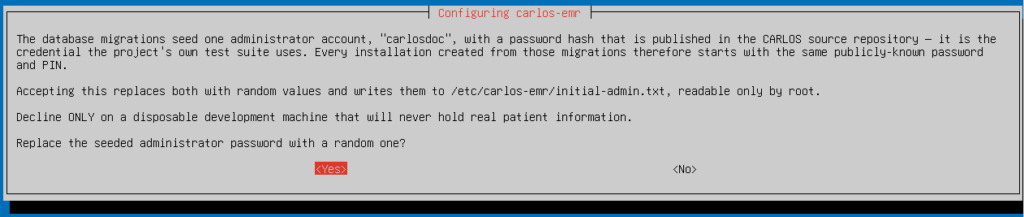
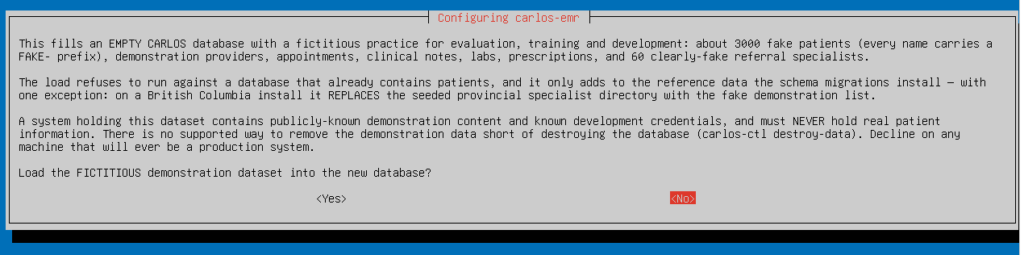
Do install test data for a disposable test server. Do not do this for a server that you intend to subsequently put production data on.
Now make yourself a coffee 😉 while apt installs dependencies and configures (~40m). Be patient even if it seems stalled at points; this is normal.
If you pick the default reseed password option the final screen will be as follows. (It is skipped if you picked <No> in the password screen.)

Then it installs drugref. You have enough time to top-up your coffee (~5m ).
When you get your cursor back you should test your install with
sudo carlos-ctl check
There should be no red FAIL steps and should end with a green All checks passed
sudo cat /etc/carlos-emr/initial-admin.txtand your credentials will look something like the following.
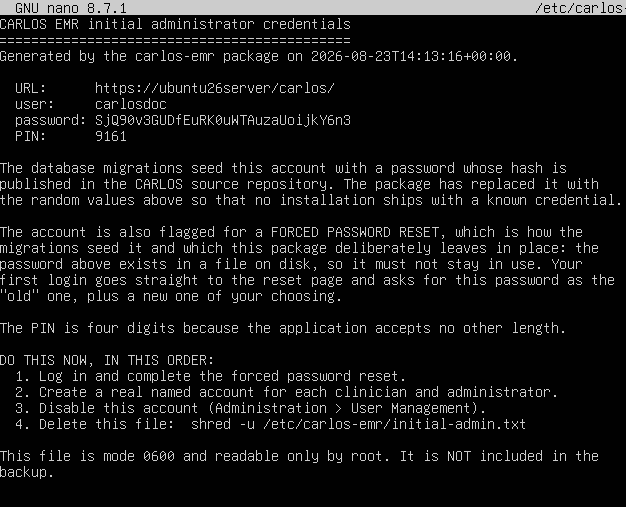
Check it out!
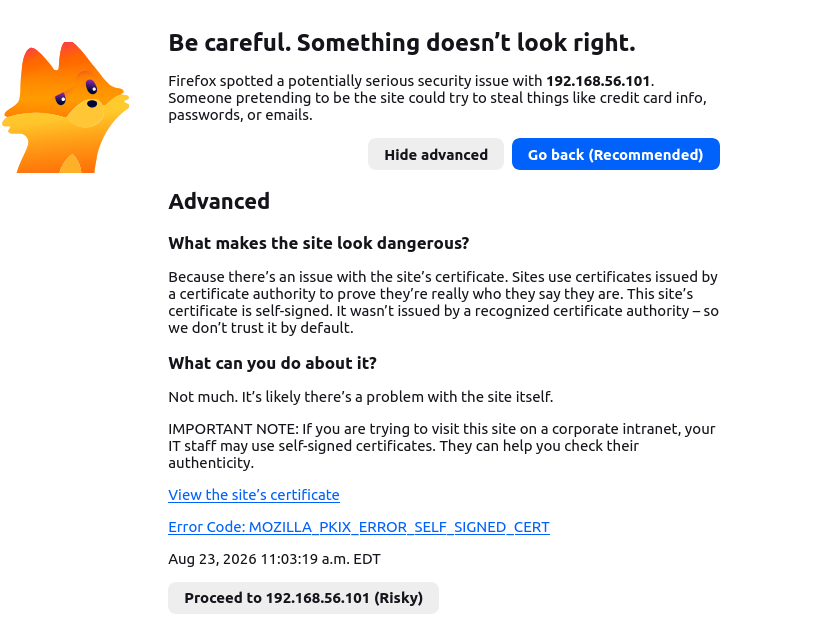
If you configured a Lets Encrypt FQDN load your URL from above in your browser. Otherwise get it with the `ip a` command run on the machine you installed CARLOS on. For me I use https://192.168.56.101/carlos
If you picked self signed you will get a browser warning like the following. The site is safe (its yours!) so click [advanced] and click [proceed] to get to CARLOS
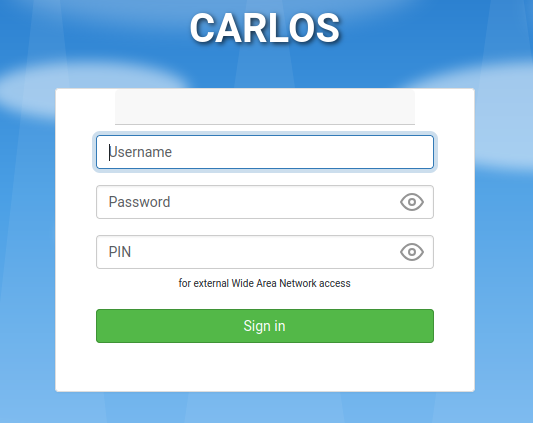
After your first login with the credentials generated by the deb you are required to change them (yes we are paranoid). Humor us and delete the credentials file before you forget.
sudo shred --u /etc/carlos-emr/initial-admin.txtNow you can enjoy CARLOS
One Command Migration from OSCAR 19
The importer attempts to analyze and convert any of a series of OSCAR schemata into the strictly versioned CARLOS database. Some prerequisites
- A stock install of CARLOS as above. The live CARLOS schema must be empty of clinic data.
- a full unencrypted `mysqldump` of the OSCAR database
- an unencrypted tar of the OscarDocument tree.
You MUST Read the instructions at github and understand the best practices, risks and limitations and only then run the command
carlos-ctl import-o19 \
--dump /srv/migration/o19.sql.gz \
--documents /srv/migration/o19-documents.tar.gz \
--province on \
[--properties /srv/migration/oscar.properties] \
[--dry-run]
Next Security Steps
- Create credentials for real users at administration > User Management This is covered in the first part of the CARLOS GUI Administration quickstart
- Disable the initial user administration > User Management > search/edit provider > status change to inactive
- Activate the UFW firewall for your machine
sudo ufw default deny incoming— Blocks all incoming traffic by default.
sudo ufw default allow outgoing— Allows all outgoing traffic from your server.
sudo ufw allow 22/tcp— Allows incoming SSH connections.
sudo ufw allow 80/tcp— You can omit if you are using a self signed certificate, but its needed for Certbot
sudo ufw allow 443/tcp— Allows incoming web traffic for HTTPS.
sudo ufw enable— Turns on the firewall (if it is not already active).
- Read the instructions on how to configure the off site backup and logs https://github.com/carlos-emr/carlos/blob/develop/debian/carlos-emr.README.Debian
Upgrades / Downgrades
Its the same command as used to install.
sudo apt install ./carlos-emr_<version>_all.deb ./carlos-emr-drugref_<version>_all.debTIP its best practice to update all the DEBs at the same time
Troubleshooting the Install
Things happen. Over time we have run into a number of installation issues that can be easily fixed.
To check log output you can `sudo carlos-ctl logs -n 200`
Your browser does not connect. Your VM is not configured to allow networking. Alter the settings to allow for networking. For testing in VirtualBox “host only networking” will do as described on the web. Restart the VM and run `ip a` in the client. Use the ip given say 192.168.56.101 and load https://192.168.56.101/carlos
The application will not start
- You have under-provisioned the VM. Ensure that it has 4G of memory or more allocated as that is the minimum memory required to run.
- A failed migration will do this use`carlos-ctl db-info` to show the migration state; `systemctl status mariadb` shows the database.
A page returns 403 and the application log shows nothing. That is the WAF, not CARLOS. `carlos-ctl waf tail` shows why.
Login redirects to http:// or the session is lost. Tomcat’s RemoteIpValve has stopped trusting nginx, so the application no longer sees X-Forwarded-Proto. Check the `internalProxies` pattern in
/etc/carlos-emr/tomcat/server.xml and the proxy_set_header lines in /etc/carlos-emr/nginx/proxy-params.conf.
Drug lookups return nothing when prescribing. Install carlos-emr-drugref, or check that it deployed:`carlos-ctl logs | grep drugref2`.
FILE LOCATION NOTES:
/usr/share/carlos-emr/webapp/ houses carlos and drugref
/var/lib/carlos-emr/Catalina/work/ houses eform-browser-pdf-tmp
/etc/carlos-emr/ houses the .env and .properties files